Edit Text in Image
Sign in to use this tool.
Edit Text in Image
Upload a poster or product image and replace visible text with Banana Pro. Review detected wording, enter the replacement, and download the edited image.
Review spelling and layout; exact font matching and unchanged surrounding pixels are not guaranteed.
Replace text ↑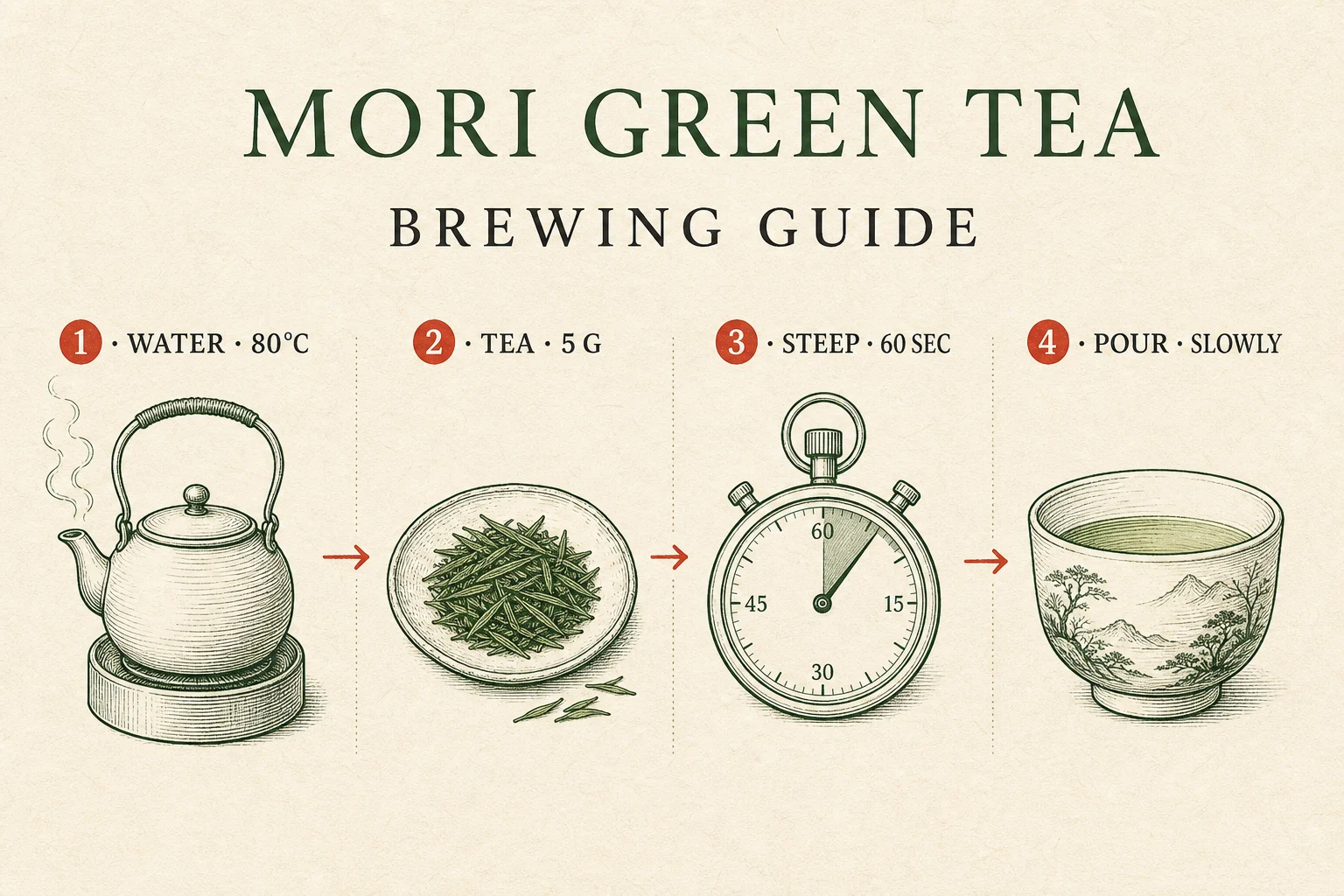
Review the detected wording
Read the recognized text before choosing which line to change.
- Start from visible text
- Correct recognition mistakes first
Replace a line of copy
Enter the desired wording while asking the model to retain the surrounding design.
- Useful for poster copy
- Product labels and headings

Check typography after editing
Inspect spelling, alignment, and nearby graphics before exporting the result.
- Generated lettering needs review
- Keep replacements reasonably short

Update compact product copy
Try a short label or heading replacement before attempting a dense design. Similar text length gives the layout a clearer constraint to work with.
- Short labels and headings
- Review every changed character

Three simple steps
Upload the design
Choose a poster, label, or other image containing text.
Enter the new wording
Check the source text and provide its replacement.
Review and download
Check every changed character and save the image.
Keep working on your image
Frequently asked questions
Can it preserve the exact font?
The edit requests similar typography, but an exact typeface, kerning, or line break is not guaranteed.
What if the text is not recognized?
Provide the source wording manually if the interface offers it, or use a clearer image.
Can I remove text instead?
Use an empty replacement where supported, or use the object removal tool to mark the text area.
Is the output a text document?
No. This workflow edits text inside an image. Use Image to Text for a copyable transcription.
Why should I keep replacement text short?
Longer wording may need new line breaks or spacing and can distort the original layout.
Edit Text in Image
Use a clear image with readable text; small or distorted lettering is harder to edit.
Replace text