AI Image Extender
Sign in to use this tool.
AI Image Extender
Extend an image beyond its current edges with Banana Pro. Choose a new ratio or adjust each side, optionally describe the surroundings, and download the expanded image.
New borders are inferred and can introduce objects, seams, or perspective changes.
Extend image ↑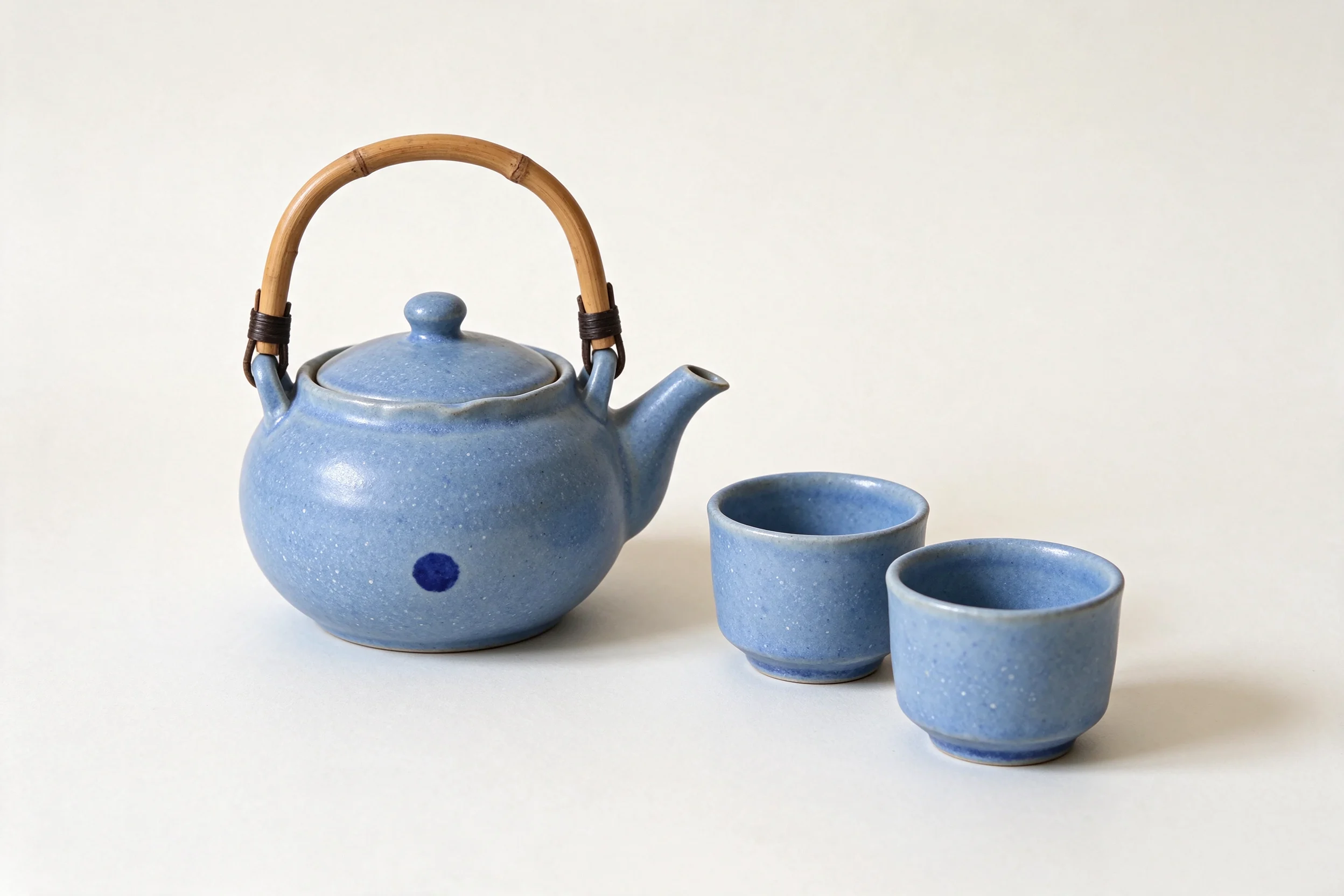
Make room around your subject
Add space at the edges for a wider scene or a different layout.
- Independent edges
- Optional background instruction
Adapt the image ratio
Use ratio presets to plan square, landscape, or portrait compositions.
- Common social layout ratios
- Original subject remains the reference

Review the new borders
Check generated edges for repeating objects, seams, and inconsistent perspective.
- Useful for layout exploration
- Download the chosen result

Plan space for a headline
Extend a chosen edge when a layout needs room beside the subject. Keep the subject as the reference and inspect the new space before adding copy elsewhere.
- Directional empty space
- Useful for layout drafts

Three simple steps
Upload an image
Choose the composition you want to extend.
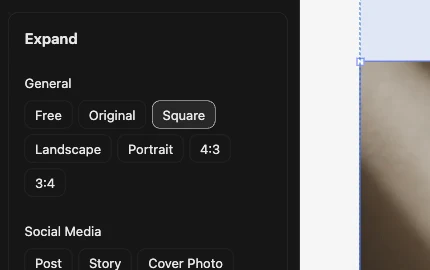
Set the new boundary
Choose a ratio or adjust the image edges.
Generate and download
Inspect the added content before saving.
Keep working on your image
Frequently asked questions
Is this the same as resizing?
No. Resizing scales existing pixels. Extending generates content outside the original boundary.
Can I change a landscape photo to portrait?
Choose a portrait ratio and extend the necessary edges. Review how the added scene changes the composition.
Do I need to write a prompt?
A prompt is optional. Add one when you need a particular type of surrounding scene.
Does it restore a cropped original?
No. New borders are generated, not recovered from an earlier uncropped photo.
Can I extend without a size limit?
No. The workspace checks the expanded dimensions and prevents unsupported sizes.
AI Image Extender
Start with a photo that has enough surrounding detail to guide the extension.
Extend image