Image Element Extractor
Sign in to use this tool.
Image Element Extractor
Extract text and selected visual elements from a flattened image with Banana Pro. Review separate objects and text before rearranging or exporting your design.
Extraction is an editable starting point, not restoration of the source design document.
Extract elements ↑
Separate a flattened design
Identify supported text and product or logo regions in one image.
- Text and visual regions
- Recognition may miss elements
Review editable text
Check the recognized wording and approximate typography.
- Text remains available for revision
- Typeface matching is approximate
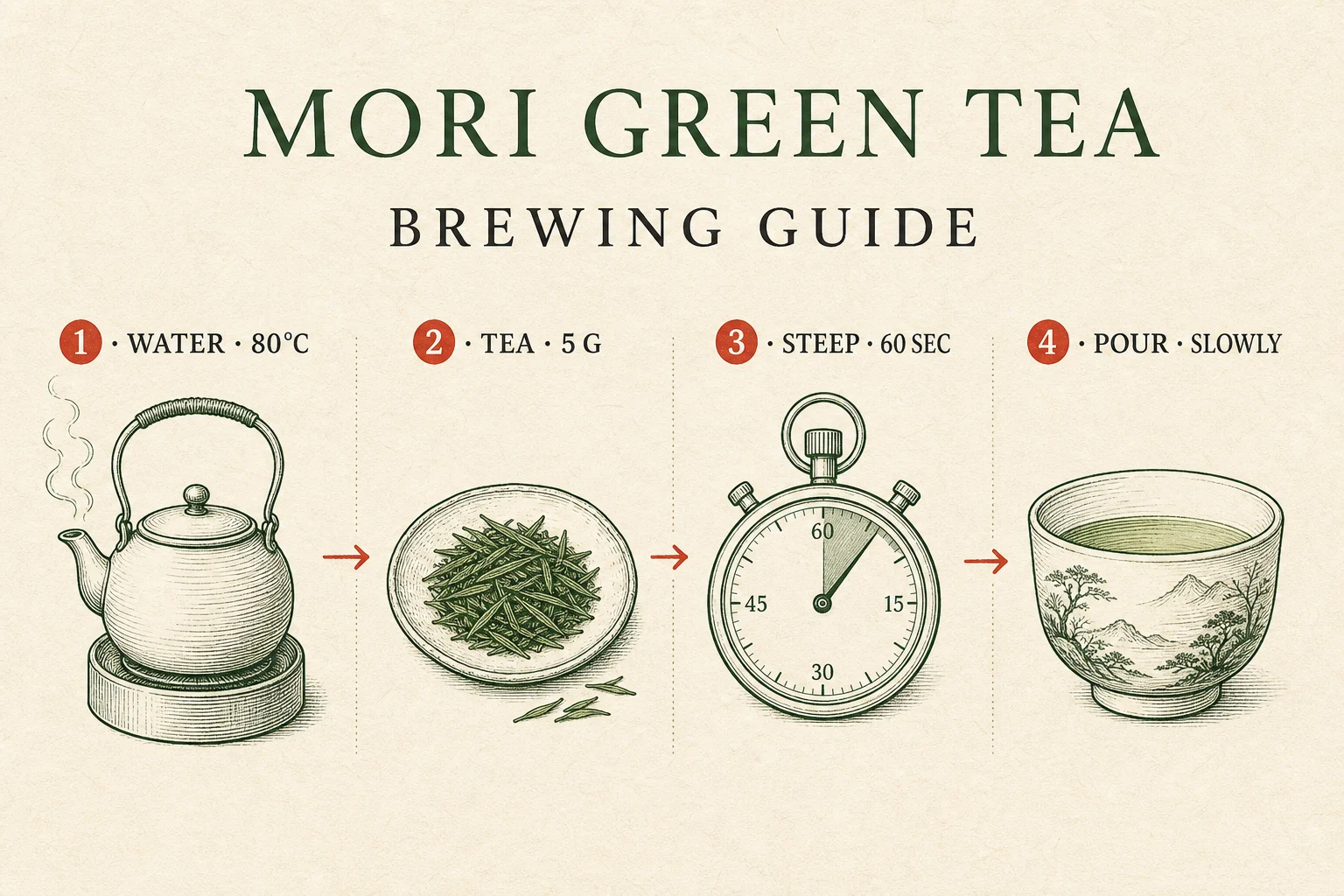
Rearrange the pieces
Work with the extracted pieces and reconstructed background.
- Separate elements
- Inspect edges and filled areas
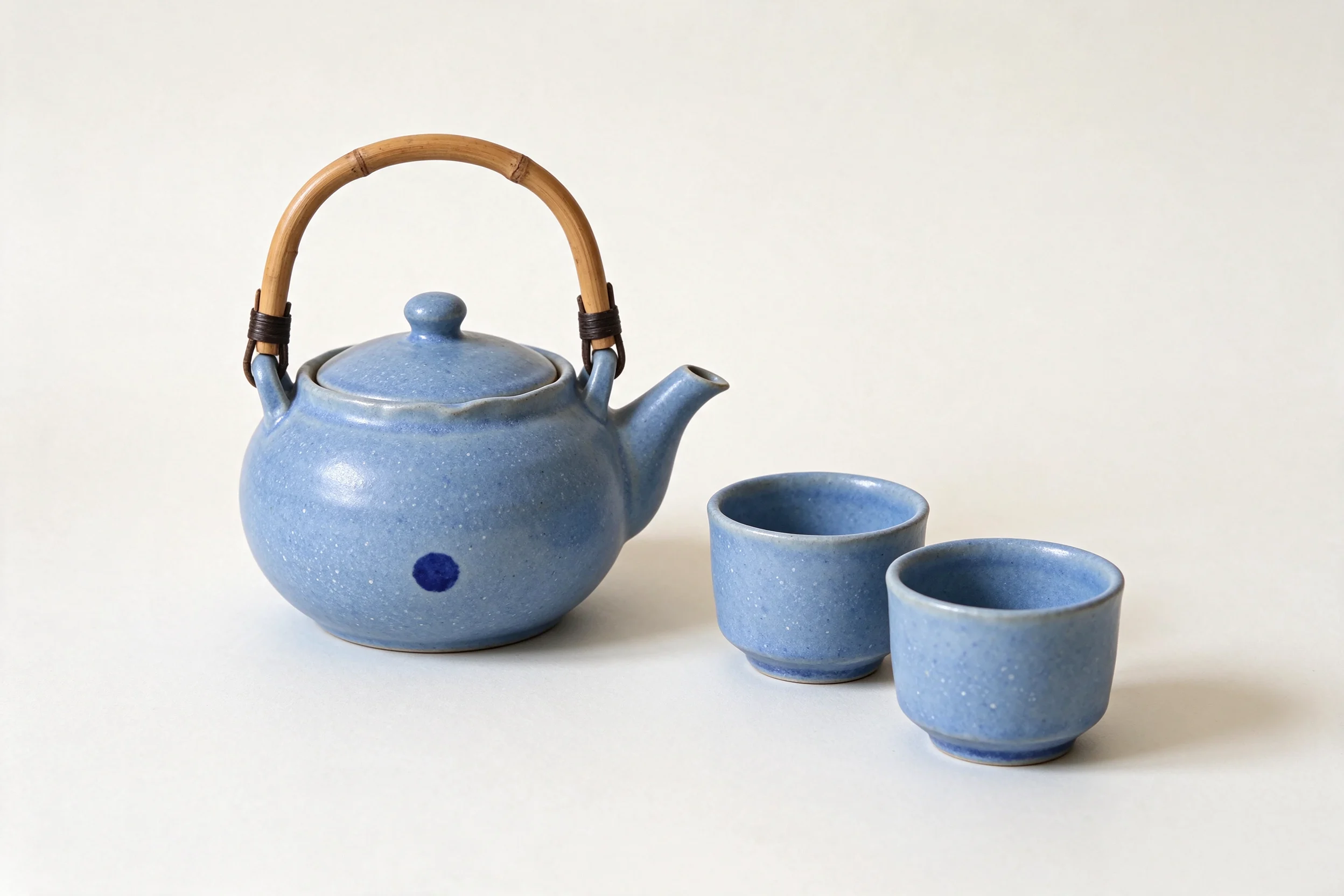
Inspect the reconstructed background
Move an extracted piece aside to review the area beneath it. Check for leftover text, repeated patterns and unnatural edges before reusing the background.
- Background under separated elements
- Review reconstruction artifacts

Three simple steps
Upload your design
Start with a clear flattened image.
Extract the elements
Let the tool identify supported text and objects.
Review and reuse
Correct recognition errors and save the composition.
Keep working on your image
Frequently asked questions
Will every object be separated?
No. Extraction depends on recognition and supported object types; complex compositions may contain missed or merged regions.
Is this the same as splitting layers?
Layer splitting creates separate image layers. Element extraction also attempts to identify editable text and selected visual objects.
Will the original font be recovered?
No. Typography is estimated; check font choice, size, alignment and line breaks.
Can it recover hidden content?
Hidden areas may be reconstructed. They are not recovered from the original design file.
What should I check first?
Review recognized text, logo edges, object boundaries and the filled background before reusing the result.
Image Element Extractor
Choose a clear poster or product composition with distinct text and objects.
Extract elements