Smudge Image
Sign in to use this tool.
Smudge Image
Push and blend image pixels with Banana Pro’s smudge brush. Set brush size and strength, make local strokes, then apply and save the edited image.
Smudging can distort recognizable details, and large images may be downsampled by the editing workspace.
Apply smudge ↑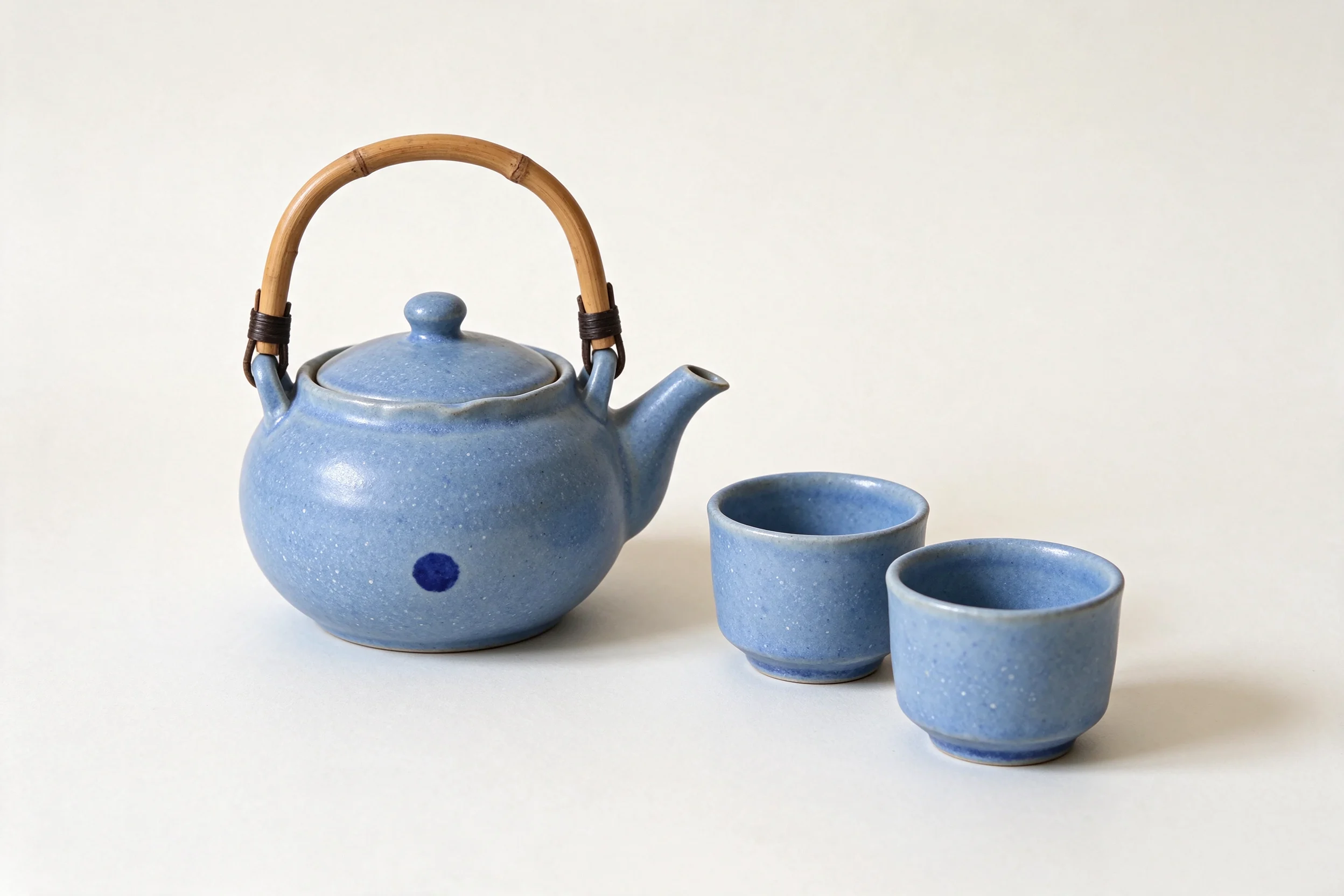
Choose the brush
Set the brush size and strength for the detail you want to move.
- Brush size control
- Adjustable stroke strength
Drag pixels locally
Paint over the image to push and blend nearby colors.
- Direct brush strokes
- Local undo while editing
Apply the visible result
Review the reshaped area and save the raster edit.
- Image output
- Check the edited edges
Blend a transition at an edge
Use short strokes near a color boundary to push the transition in a chosen direction. Work gradually so the brush does not pull too much surrounding detail into the area.
- Directional pixel blending
- Short, controlled strokes
Three simple steps
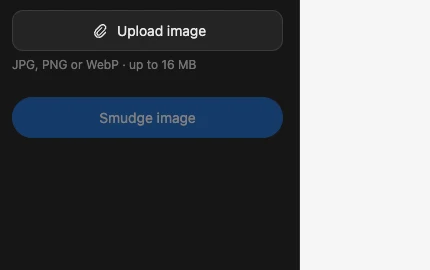
Upload an image
Choose the detail you want to reshape.
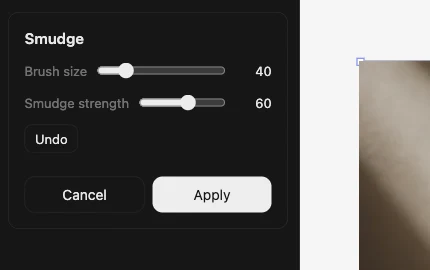
Paint a few strokes
Use a small brush and moderate strength first.
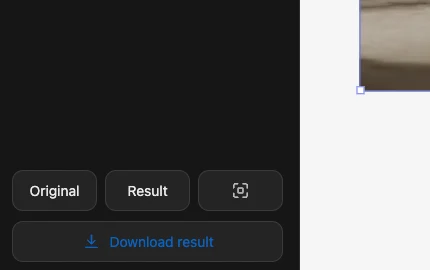
Apply and download
Inspect the local edit and save it.
Keep working on your image
Frequently asked questions
Does smudge generate new objects?
No. It moves and blends existing pixels; use Inpainting for a text-guided replacement.
Can I change the brush strength?
Yes. The brush interface provides size and strength controls.
Can I undo a stroke?
Use the available local undo while the smudge editing session remains open.
Will it keep the original resolution?
The existing smudge workspace may reduce large images for editing. Inspect the output dimensions before reuse.
What is a good starting setting?
Use a small brush and moderate strength, then increase gradually while comparing the edge shape.