AI Inpainting
Sign in to use this tool.
AI Inpainting
Select an area of your image and describe the change with Banana Pro. Replace a local object, repair a detail, or explore a new material without starting from a blank image.
Generated local changes require review and may alter nearby edges or product details.
Edit selected area ↑
Choose the edit area
Brush, draw a shape, or use a supported selection tool to mark the part you want to change.
- Local image selection
- Adjust the boundary before submitting
Describe a specific replacement
Name the desired object, material, or detail instead of asking for a vague improvement.
- Text-guided local edits
- Optional style guidance

Blend and inspect the boundary
Use edge softness where available and check the transition around the edited area.
- Boundary control
- Review nearby details

Try a material change in one region
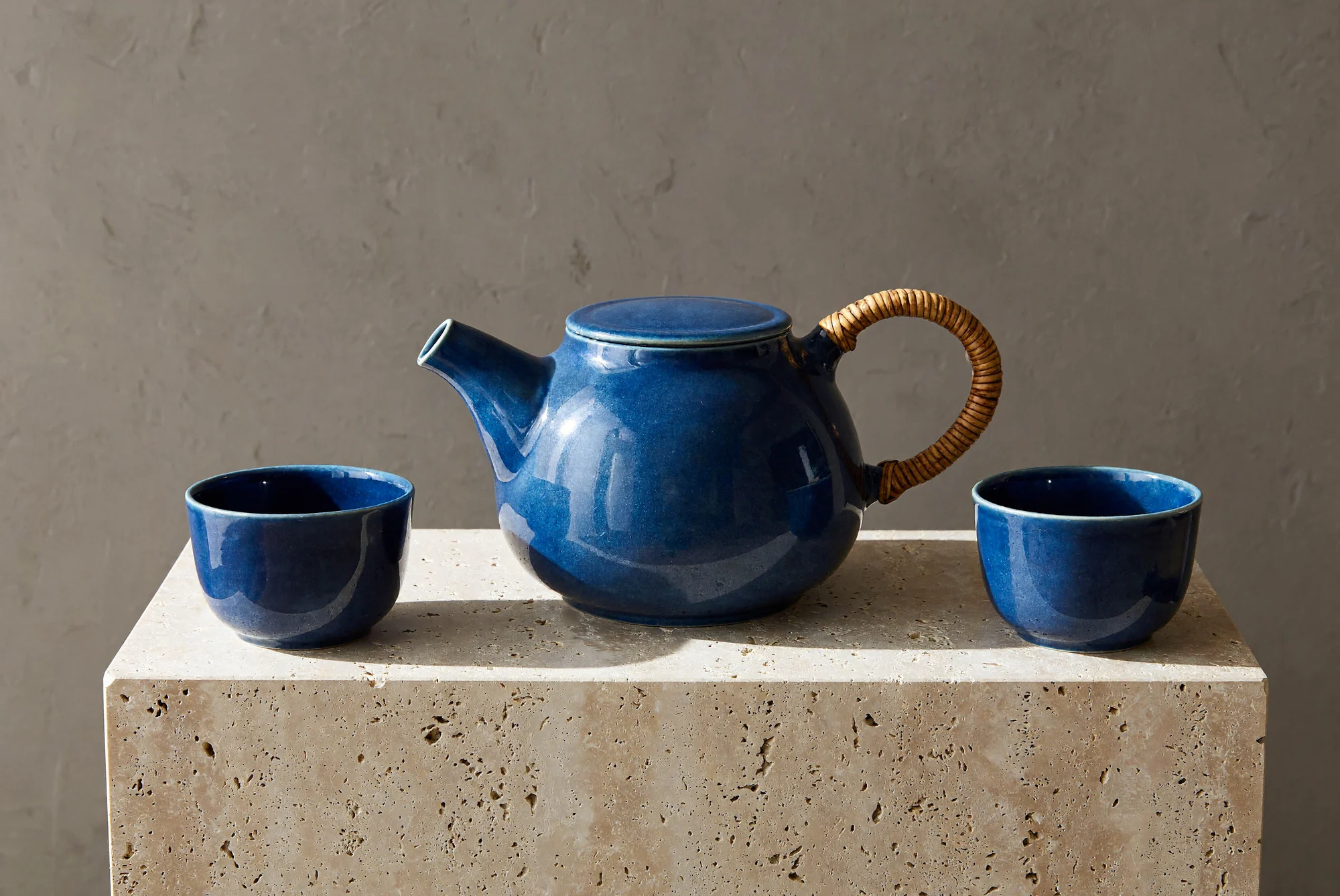
Select a product surface and describe a different color or finish. Keep the request local and inspect how the new material meets the existing edges and light.
- Targeted material exploration
- Check shape and lighting continuity
Three simple steps
Upload an image
Choose the photo or artwork you want to edit.
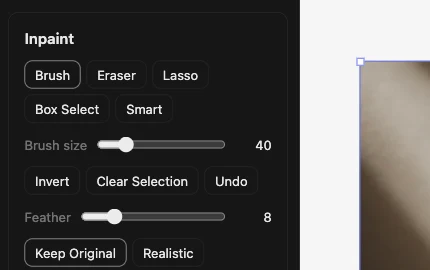
Select and describe
Mark the target region and write the desired change.
Review the local edit
Inspect the boundary and download the result.
Keep working on your image
Frequently asked questions
How is this different from removing an object?
Inpainting uses your instruction to create new content in a selected area. Object removal focuses on filling the area with surrounding context.
Will everything outside the selection stay identical?
The workflow targets a local area, but generative edits and boundary blending may still affect nearby pixels.
How large should the selection be?
Include the full target plus a small amount of surrounding context. Very tight selections can create obvious seams.
What should I write?
Describe the replacement and any important material, color, or lighting requirement. Keep the request focused.
Can I edit product details?
Yes, as a visual draft. Review dimensions, lettering, and design accuracy before using it as a product representation.
AI Inpainting
Use a clear image and select enough of the target area for the requested edit.
Edit selected area