Photo Color Editor
Sign in to use this tool.
Photo Color Editor
Adjust light, color and detail in a photo with Banana Pro. Preview exposure, contrast, saturation and other controls, then apply and download the edited image.
Adjustments can amplify noise or clipping; they do not recreate missing source information.
Apply adjustments ↑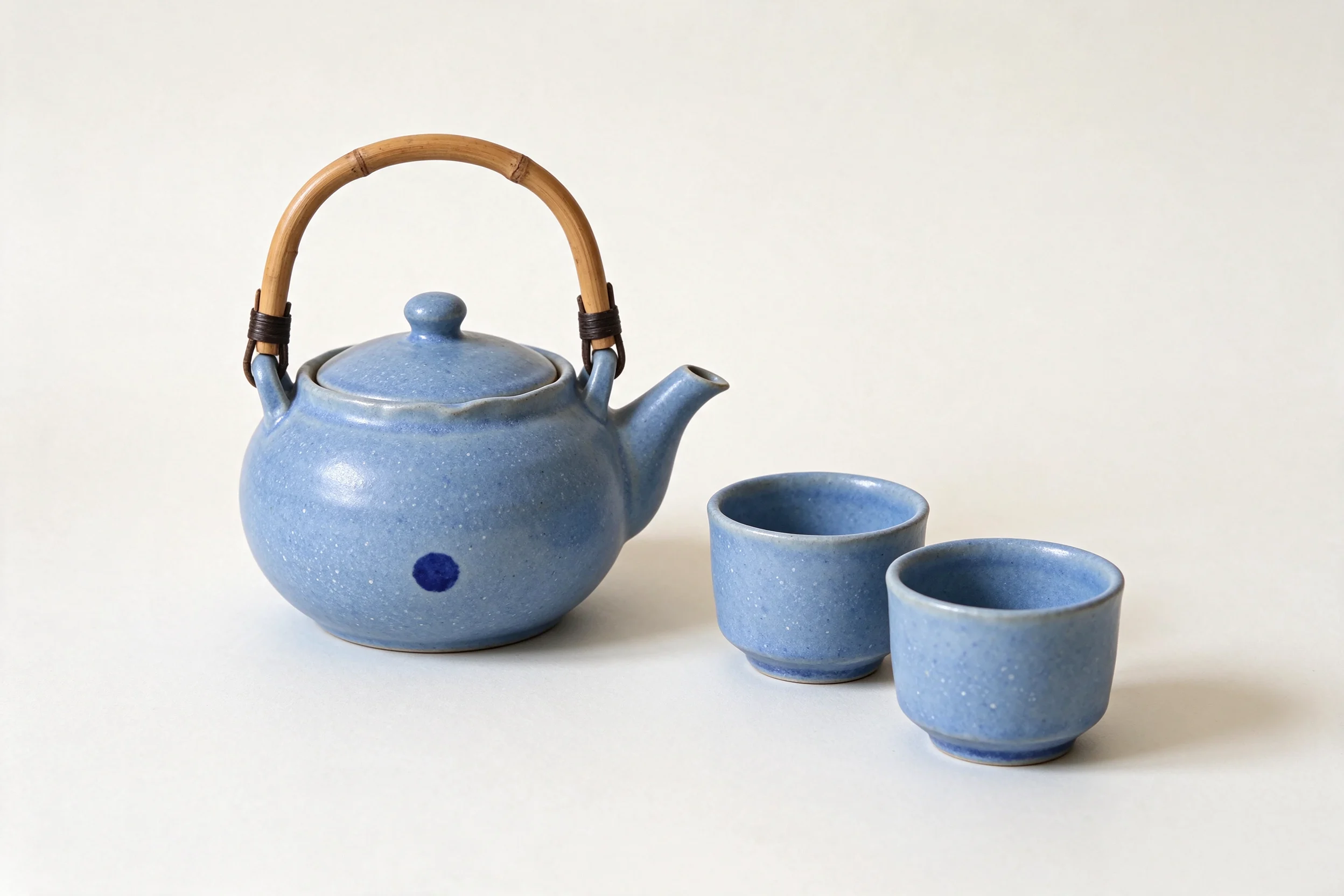
Balance the light
Tune exposure, contrast and tonal regions.
- Exposure and contrast
- Highlights and shadows
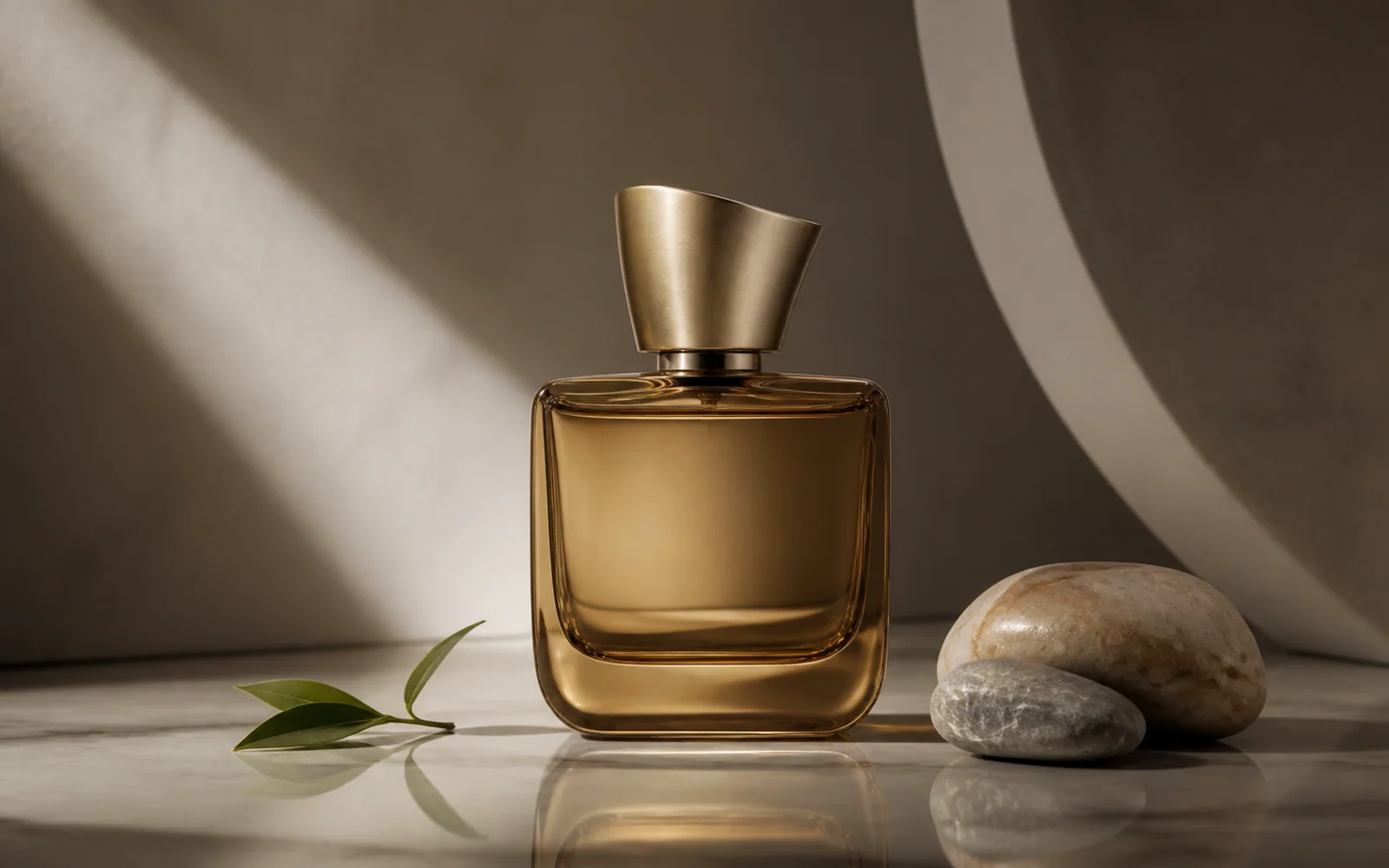
Refine the color
Adjust saturation, vibrance and color temperature.
- Color intensity
- Warm and cool balance
Apply a reviewed edit
Compare the adjustment with the source before saving it.
- Live preview
- Rendered image download
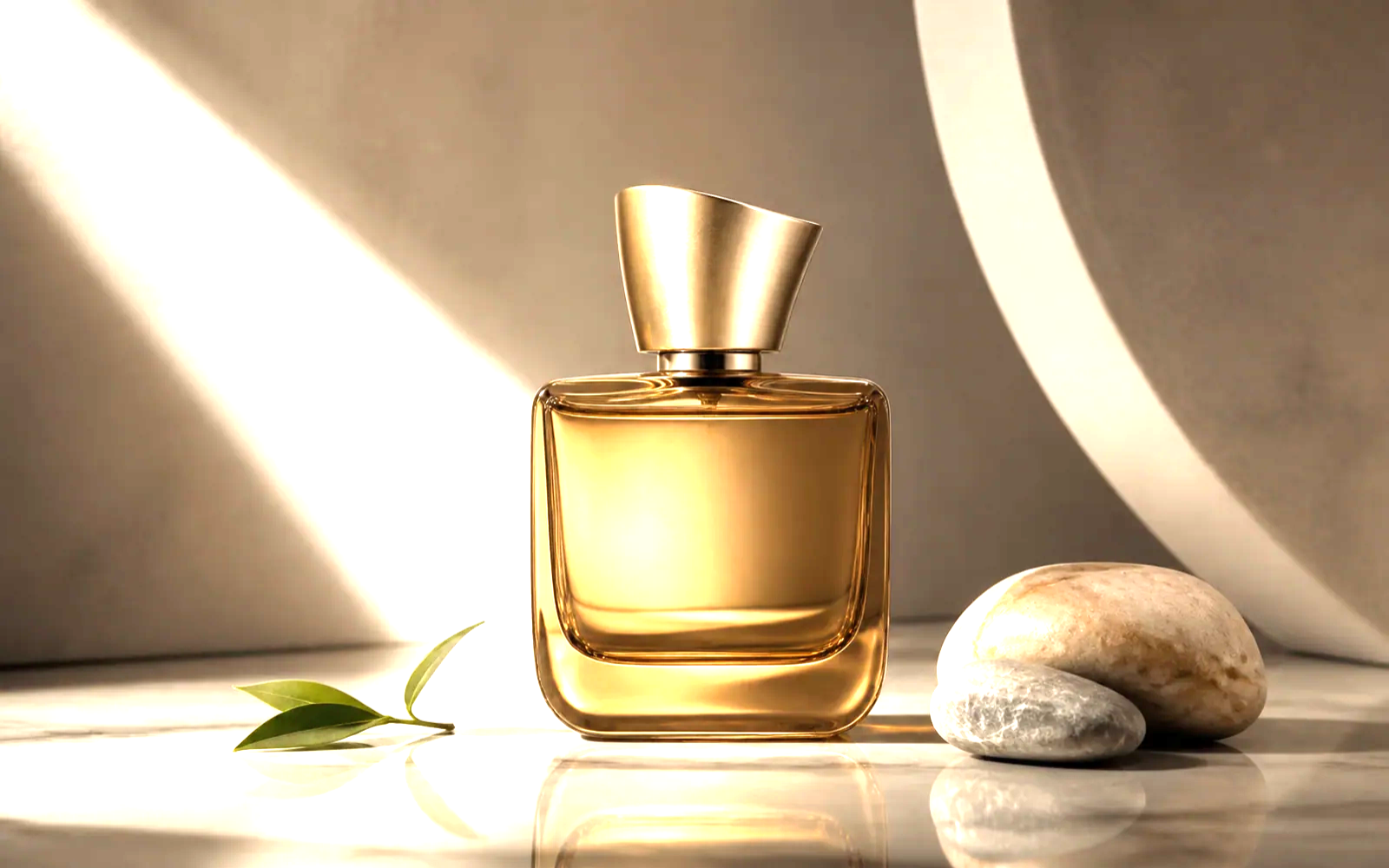
Control the feel of the texture
Use the available sharpness, clarity and grain controls to refine surface detail. Increase gradually and inspect noise or halos around high-contrast edges.
- Sharpness, clarity and grain
- Watch for noise and halos

Three simple steps
Upload the photo
Choose the image you want to adjust.
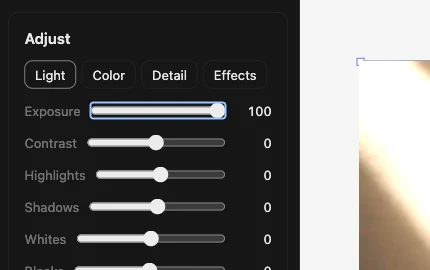
Tune the sliders
Start with a small change and compare.
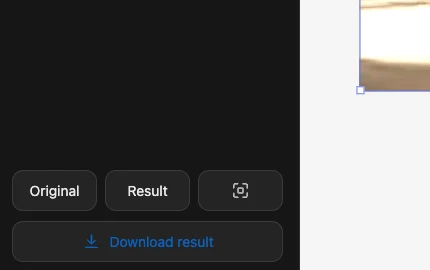
Apply and download
Save the visible edited result.
Keep working on your image
Frequently asked questions
Can it restore clipped highlights?
No. Adjustment cannot recover real image information that is absent from the source.
Does changing temperature replace the background?
No. It shifts the image color balance rather than generating a different scene.
Can I compare before applying?
Use the available comparison control to review the current adjustment against the source.
Why should I use small changes first?
Large adjustments can exaggerate noise, halos or unnatural colors.
Will the download include my changes?
Download the rendered edited result after applying the adjustments.
Photo Color Editor
Start with an image that still has useful highlight and shadow detail.
Apply adjustments