Move Object in Photo
Sign in to use this tool.
Move Object in Photo
Reposition a selected object in a photo with Banana Pro. Mark the object, choose its new location, and review the filled background and new placement.
Moving an object may change its edges, shadows and nearby background. Review the whole composition.
Move selected object ↑
Mark the object
Select the entire subject you want to reposition.
- Brush and selection controls
- Include the object boundary
Choose its new position
Move the selection to plan a different composition.
- Reposition within the image
- Preview the intended destination
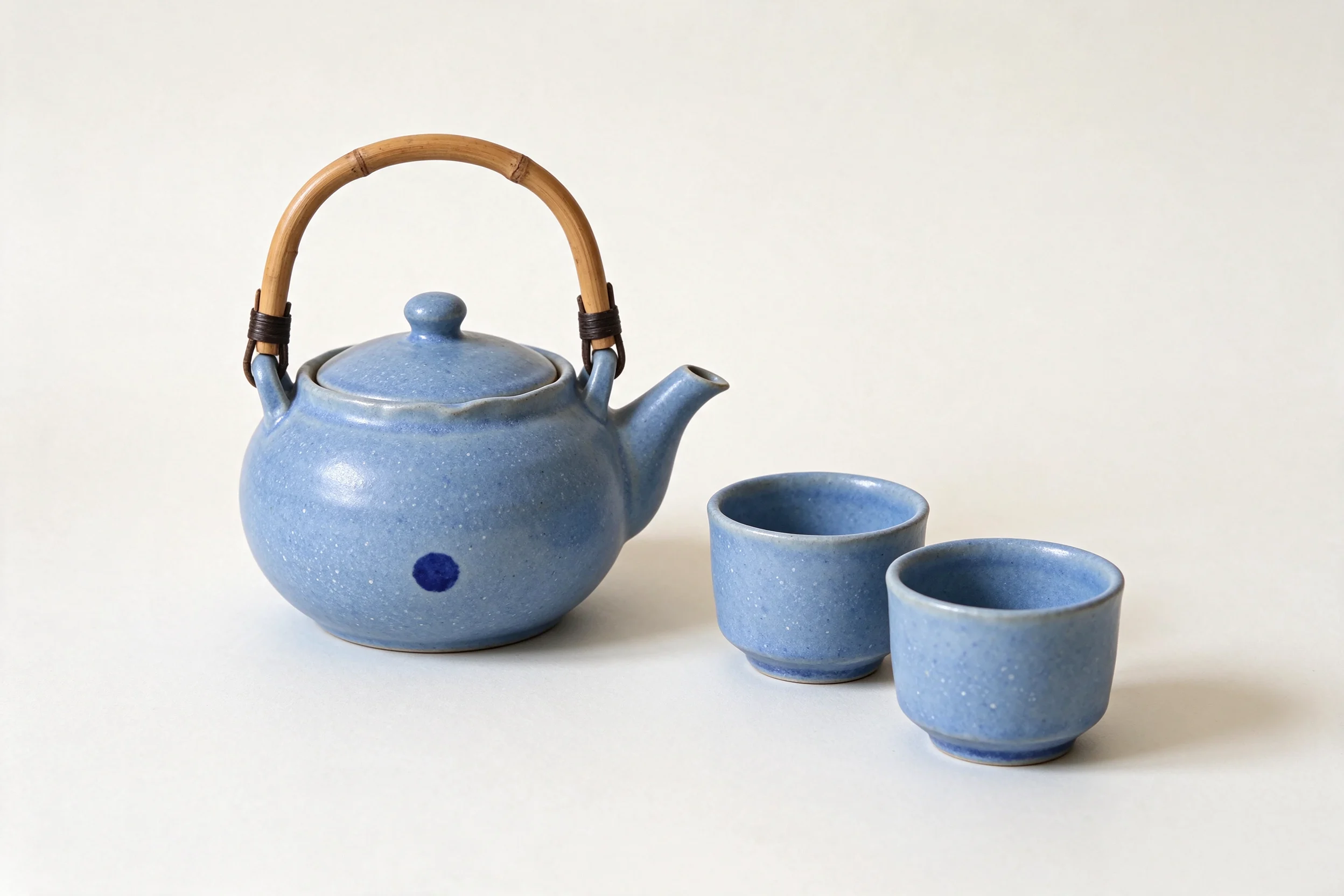
Review both changed areas
Inspect the old location, the new contact edges and any reconstructed background.
- Background filling
- Check lighting consistency

Explore spacing within the frame
Reposition a selected object to change the gap between products or the balance of a still life. Inspect overlap and contact edges after each placement.
- Product spacing and balance
- Review overlap at the destination

Three simple steps
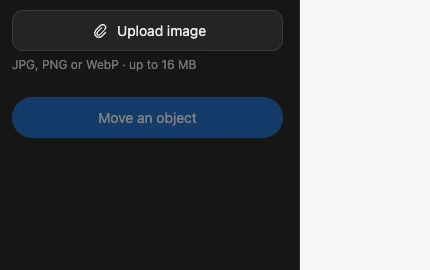
Upload the photo
Choose the object and surrounding scene.
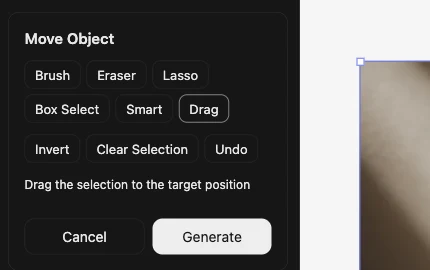
Select and move
Mark the object and set its new position.
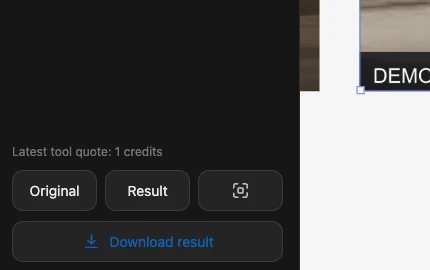
Review and download
Check both the source area and destination.
Keep working on your image
Frequently asked questions
Can it move a partly hidden object?
It can attempt the edit, but missing edges and occluded surfaces are harder to reconstruct.
What fills the old location?
The workflow generates a plausible fill based on surrounding context.
Will shadows move perfectly?
No. Check contact shadows, reflections and lighting after the edit.
Can I use it for product layouts?
It can help explore a composition; inspect the product shape and design details carefully.
What makes the selection easier?
Distinct boundaries and a little surrounding context are easier than overlapping objects or reflections.