AI Mockup Generator
Sign in to use this tool.
AI Mockup Generator
Place your artwork on a product photo with Banana Pro. Add the product and design, adjust placement and surface fit, then save the rendered mockup.
Mockups are visual previews. Inspect the artwork and do not use inferred geometry as production measurements.
Create mockup ↑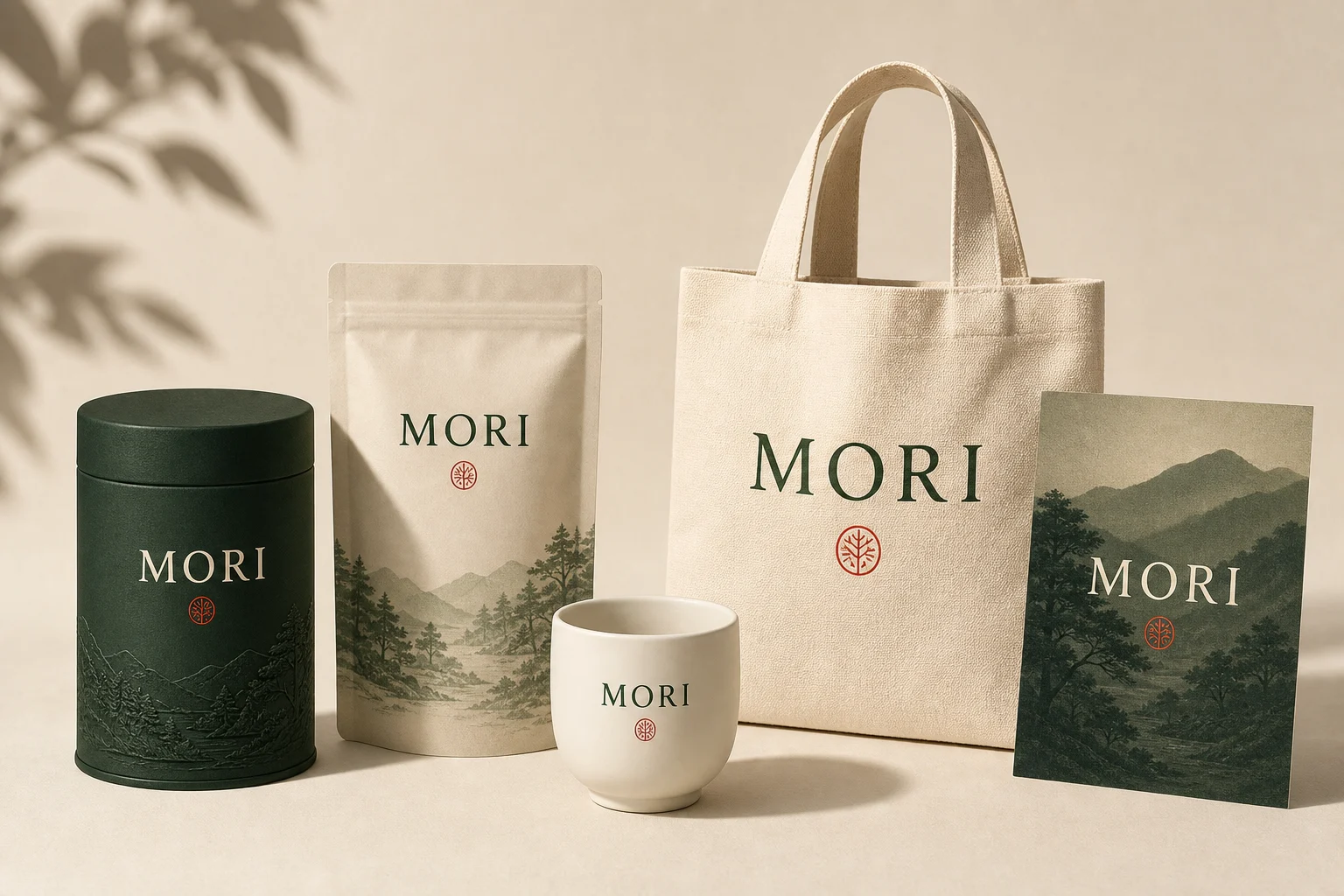
Start from your product photo
Use a photographed surface to guide the design placement.
- Product image as the base
- Separate artwork input
Position your artwork
Adjust the design location, scale, rotation and surface fit.
- Placement controls
- Review the edges and folds
Save a rendered preview
Bake the composition into an image or try the optional AI blend.
- Image output
- AI blending may change small details
Review the print against the surface
Look closely at folds, curved edges and highlights after placing a design. Use the optional blend only when the printed appearance needs further integration.
- Folds and curved surfaces
- Legibility after blending
Three simple steps
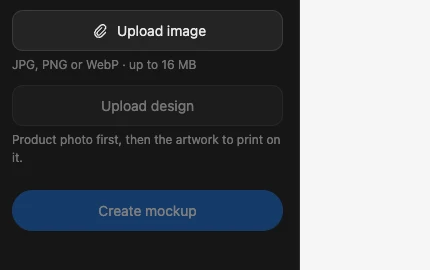
Upload product and artwork
Choose the product photo first, then add the design.
Adjust the placement
Position the artwork and review its surface fit.
Render and download
Save the mockup after checking the design.
Keep working on your image
Frequently asked questions
Do I need two images?
Use a product photo as the base and a separate image for the design you want to place.
Can I control the design position?
Yes. The mockup controls support position, scale, rotation and surface fit.
Is the result a manufacturing template?
No. It is a visual mockup, not a print-ready dieline or a measurement specification.
What does AI blending do?
It asks the model to integrate the design with the surface lighting and material. Check for unwanted changes.
Which product photo works best?
A clear, unobstructed print surface is easier to place artwork on than folds, reflections or heavy occlusion.